
The internet is built on numbers, but humans live in a world of names. Imagine if you had to memorize 142.250.190.46 every time you wanted to search for something on Google, or 104.26.3.128 to read your favorite blog. It would make browsing the web a miserable experience.
That is where the Domain Name System (DNS) comes into play. Often called the “phonebook of the internet,” DNS is the invisible foundation that translates human-readable domain names (like example.com) into machine-readable IP addresses.
Whether you are launching a new website, setting up secure business emails, or troubleshooting slow load times, mastering DNS Configuration is a non-negotiable skill. In this guide, we will break down what DNS is, how it functions behind the scenes, the different types of records, and step-by-step instructions to configure DNS like an absolute pro.
What is DNS?
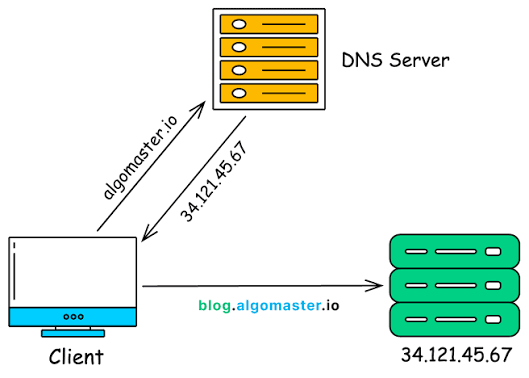
At its core, the Domain Name System is a decentralized, hierarchical naming system for computers, services, or any resource connected to the internet or a private network.
When you type a web address into your browser, your computer needs to discover where that website is physically hosted. Every device connected to the internet has a unique IP (Internet Protocol) address. DNS matches the easy-to-remember domain name you type with the actual IP address of the server hosting that content.
Without DNS, the web as we know it would collapse under the weight of unmemorizable numerical strings. It is a vital utility that runs quietly in the background of every single click, stream, and email sent globally.
How DNS Works
Understanding the mechanics of DNS resolution helps when managing a DNS Configuration or troubleshooting connection issues. The resolution process happens in milliseconds through a series of queries between different specialized servers.
The Four Key Servers in the DNS Chain
- DNS Recursive Resolver: Think of this as a librarian you ask to find a specific book. Usually operated by your ISP (Internet Service Provider) or third-party providers like Cloudflare (
1.1.1.1) or Google (8.8.8.8), the resolver is the first stop. It receives your query and does the legwork of finding the IP address. - Root Nameserver: The first stop in the actual DNS hierarchy. It doesn’t know the IP, but it knows who does. It points the recursive resolver toward the correct Top-Level Domain (TLD) nameserver based on the extension of your domain (e.g.,
.com,.org,.net). - TLD Nameserver: This server manages the registry for specific domain extensions. If you are looking up
example.com, the Root Server points the resolver to the.comTLD server. The TLD server then points the resolver to the specific authoritative server for that domain. - Authoritative Nameserver: This is the final destination. The authoritative nameserver holds the actual DNS records for the domain. It returns the destination IP address back to the recursive resolver, which in turn hands it to your browser.
[User Browser] -> (Sends Query) -> [Recursive Resolver]
                                         │
    ┌────────────────────────────────────┴───────────────────────────────────┐
    ▼                                    ▼                                   ▼
[Root Nameserver]                 [TLD Nameserver]               [Authoritative Nameserver]
(Points to .com TLD)             (Points to DNS Host)            (Returns actual IP address)
Once your browser receives the IP address from the resolver, it caches (saves) it locally so it doesn’t have to repeat this entire trip for subsequent page visits.
Types of DNS Records
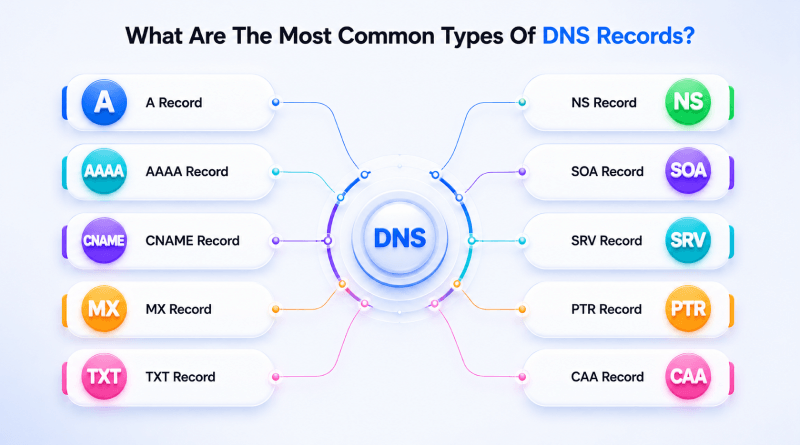
Source: MilesWeb
When you open your domain provider’s DNS Settings, you are met with a table of various records. Each record type serves a distinct, vital purpose.
A Record (Address Record)
The most fundamental DNS record. It maps a domain or subdomain directly to an IPv4 address.
- Example:
example.com→192.0.2.1
AAAA Record (IPv6 Address Record)
Functions identically to the A record, but maps a domain to an IPv6 address instead of IPv4.
- Example:
example.com→2001:db8:85a3::8a2e:370:7334
CNAME Record (Canonical Name)
Maps an alias name to another “canonical” domain name. This is highly useful for pointing multiple subdomains to a single primary domain without maintaining duplicate A records.
- Example:
www.example.com→example.com
MX Record (Mail Exchanger)
Specifies the mail servers responsible for receiving email on behalf of your domain. MX records always include a priority number (lower numbers indicate higher priority).
- Example:
example.com→mail.protonmail.ch(Priority:10)
TXT Record (Text Record)
Allows domain administrators to insert arbitrary text into DNS records. Today, TXT records are primarily used for domain ownership verification and email security protocols (SPF, DKIM, and DMARC).
- Example:
v=spf1 include:_spf.google.com ~all
NS Record (Name Server)
Indicates which authoritative DNS servers are responsible for managing the DNS records of a domain.
- Example:
ns1.cloudflare.com,ns2.cloudflare.com
PTR Record (Pointer Record)
The exact opposite of an A record. It maps an IP address back to a domain name (used for reverse DNS lookups, which are critical for preventing spam).
- Example:
192.0.2.1→mail.example.com
SRV Record (Service Record)
Specifies the location (hostname and port number) of specific services, such as VoIP or Directory services.
- Example:
_sip._tcp.example.com→ Points to a specific SIP server port.
CAA Record (Certification Authority Authorization)
Allows domain owners to specify which Certificate Authorities (CAs) are allowed to issue SSL/TLS certificates for their domain, adding a crucial layer of security.
- Example:
example.com→letsencrypt.org
Practical Record Examples
When configuring these records, precision is vital. Here are exact real-world examples of how they should be constructed in your management dashboard.
1. A & AAAA Records
Type: A
Name: @ (or leave blank, represents root domain)
Value: 192.0.2.45
TTL: 3600 (1 Hour)

Type: AAAA
Name: @
Value: 2001:db8:3333:4444:5555:6666:7777:8888
TTL: 3600
2. CNAME Record
Type: CNAME
Name: blog
Value: hosting.ghs.googleusercontent.com
TTL: 14400 (4 Hours)
3. MX Record
Type: MX
Name: @
Value: mail.example.com
Priority: 10
TTL: 3600
4. Email Security Bundle (TXT Records)
Securing outgoing email relies on three highly integrated TXT records: SPF, DKIM, and DMARC.
SPF (Sender Policy Framework)
Specifies which IP addresses and servers are authorized to send email from your domain.
Type: TXT
Name: @
Value: v=spf1 include:_spf.google.com include:sendgrid.net -all
(This allows both Google Workspace and SendGrid to send emails on your behalf; any other source will be outright rejected by receiving servers).
DKIM (DomainKeys Identified Mail)
Adds a cryptographic signature to outgoing email headers, proving the email was not modified in transit.
Type: TXT
Name: google._domainkey
Value: v=DKIM1; k=rsa; p=MIIBIjANBgkqhkiG9w0BAQEFAAOCAQ8AMIIBCgKCAQEAv...
DMARC (Domain-based Message Authentication, Reporting, and Conformance)
Tells receiving mail servers what to do if an email fails SPF or DKIM checks.
Type: TXT
Name: _dmarc
Value: v=DMARC1; p=quarantine; pct=100; rua=mailto:[email protected]
(This instructs receiving servers to quarantine 100% of emails failing authentication and send detailed XML reports to your specified mailbox).
How to Configure DNS on Popular Platforms
No matter which registrar or hosting platform you use, the conceptual steps to Configure DNS remain identical. Let’s look at how to navigate the settings on four major industry platforms.
1. Cloudflare DNS
Cloudflare offers some of the fastest DNS resolution speeds in the world alongside robust security.
- Log in to your Cloudflare dashboard and select your domain.
- Click on the DNS tab in the left sidebar, then select Records.
- To add a record, click Add Record.
- Choose the record type (e.g., A, CNAME, MX), enter your host (use
@for root), enter the target IP or value, choose your proxy status (orange cloud for Cloudflare proxy/CDN, grey cloud for DNS-only), and click Save.
2. Hostinger DNS
Hostinger provides a streamlined, beginner-friendly hPanel.
- Log in to your Hostinger hPanel and navigate to Domains.
- Click Manage next to your domain.
- In the left sidebar, click on DNS / Nameservers.
- Use the Manage DNS Records form at the top to select your record type, fill in the Name (host), Point to (IP address/value), and TTL.
- Click Add Record.
3. GoDaddy
GoDaddy is one of the largest domain registrars in the world.
- Log in to your GoDaddy Portfolio.
- Click the three dots next to your domain and select Edit DNS or click Manage DNS directly.
- Click the Add New Record button.
- Select the Type from the dropdown menu, enter the Name, Value, and select your TTL.
- Click Save to apply the changes.
4. Namecheap
Namecheap offers a clean interface for record management.
- Log in to your Namecheap account.
- Select Domain List from the left sidebar and click the Manage button next to your target domain.
- Switch to the Advanced DNS tab at the top.
- Go to the Host Records section and click Add New Record.
- Select the record type, enter your Host, Value, and TTL, then click the green checkmark icon to save.
DNS Propagation: What to Expect
Once you successfully update your DNS Settings, they do not apply instantly worldwide. This waiting period is known as DNS Propagation.
When you modify a DNS record, recursive resolvers around the world have to update their local caches. Because resolvers store your old records based on their designated TTL (Time to Live) values, it takes time for the old cached data to expire and be replaced by your new configuration.
The 24-48 Hour Window: While many modern DNS servers update within minutes, full global propagation can take anywhere from a few hours up to 48 hours depending on the TTL settings and the geographical location of the users.
Troubleshooting and Commands
When your site is down or your emails aren’t arriving, running local diagnostic commands is the fastest way to trace the error.
1. nslookup
A classic tool available natively on Windows, macOS, and Linux to query DNS servers.
# Look up the A record of a domain
nslookup example.com

# Query for a specific mail server record
nslookup -type=mx example.com
2. dig (Domain Information Groper)
The industry-standard DNS query tool for Linux and macOS, offering rich, detailed diagnostic outputs.
# General lookup
dig example.com

# Fetch TXT records specifically (ideal for checking SPF/DKIM/DMARC)
dig example.com TXT

# Query a specific DNS server directly (e.g., using Cloudflare's 1.1.1.1)
dig @1.1.1.1 example.com
3. ping
Confirms basic IP connectivity by sending ICMP Echo Request packets to a target.
ping example.com(If ping translates the domain name to an IP address but fails to get a reply, your DNS is working fine, but the target server itself is down or blocking ping requests).
4. traceroute / tracert
Traces the physical path packets take to reach a destination server across the internet.
# Windows
tracert example.com

# macOS / Linux
traceroute example.com
Common Mistakes & Best Practices
Avoiding common pitfalls during your DNS Configuration will save you hours of panic and prevent website downtime.
The Most Common Mistakes
- Creating Multiple CNAME Records for the Same Host: A host running a CNAME record cannot have any other DNS records associated with it. Adding both a CNAME and an A record for
wwwwill break your routing. - Forgetting the Trailing Dot: In bind-based DNS files, failing to add a trailing dot to a FQDN (Fully Qualified Domain Name) can append your domain to the end. For example, pointing a CNAME to
ghs.google.comwithout a trailing dot might accidentally resolve toghs.google.com.example.com. - Setting Too High of a TTL Before a Migration: If you are migrating your website to a new server, lower your TTL values to
300seconds (5 minutes) at least 24 hours before the move. This ensures your DNS updates propagate almost instantly when you flip the switch.
DNS Security Best Practices
- Enable DNSSEC (DNS Security Extensions): DNSSEC cryptographically signs your DNS records, preventing hackers from executing “DNS hijacking” or “cache poisoning” attacks where they redirect your users to malicious websites.
- Enable Multi-Factor Authentication (MFA): Your domain registrar accounts are incredibly high-value targets. If a malicious actor gains access, they can change your nameservers and steal your entire digital presence in seconds. Always enforce strict MFA.
Frequently Asked Questions
What is the difference between a Domain Registrar and a DNS Host?
A domain registrar is the company where you purchase and register your domain name (e.g., Namecheap or GoDaddy). A DNS host is the service that actually manages and routes your DNS records. While registrars often provide free DNS hosting, you can easily buy a domain from one company and route its DNS through a specialized provider like Cloudflare.
Can I have multiple SPF records on my domain?
No. Having more than one SPF TXT record on a single domain violates RFC specifications and will cause incoming mail servers to fail SPF authentication entirely. If you use multiple email services, you must merge them into a single TXT record (e.g., v=spf1 include:_spf.google.com include:sendgrid.net -all).
How can I check if my DNS records have propagated?
You can use free web-based DNS Lookup propagation checkers like DNS Checker or WhatsMyDNS. These tools query DNS servers located in dozens of different countries simultaneously to show you exactly which IP addresses are resolving worldwide.
What happens if I make a mistake in my MX records?
If your MX records are misconfigured, formatted incorrectly, or pointed to a non-existent mail server, your domain will be completely unable to receive incoming emails. Senders trying to contact you will receive bounced-back delivery failure notifications.
Does changing DNS servers affect my SEO?
Changing your DNS servers will not directly affect your search engine rankings, provided your site remains online. However, routing your domain through a fast DNS provider (like Cloudflare) can slightly decrease your time-to-first-byte (TTFB), speed up page load times, and improve user experience—which are positive ranking signals for search engines.
Secure Your Domain Today
Configuring DNS can feel intimidating at first, but once you understand how the puzzle pieces fit together, it becomes one of the most powerful utilities in your technical toolkit. Taking the time to properly configure your record mapping, secure your emails with SPF/DKIM/DMARC, and route your traffic through a fast provider is a foundational step for any successful online venture.
Ready to secure your domain and guarantee email deliverability? Audit your current DNS records today, clean up any old, unused pointers, and ensure your authentication TXT records are fully set up.
About The Author
