
You have a multi-story home or a spread-out layout, thick concrete walls, and persistent WiFi dead zones in the back room or upstairs office. Running solid structural Cat6 Ethernet cables is either structurally impossible, rejected by your landlord, or cost-prohibitive.
Off-the-shelf range extenders seem like an easy fix, but they often introduce unstable connections, separate network SSIDs, and high packet loss.
A Wireless Distribution System (WDS) allows you to bridge multiple wireless routers together into a unified Layer 2 network fabric. By daisy-chaining three TP-Link routers wirelessly, you can extend network coverage deep into dead zones without a single inch of structural Ethernet wiring.
This guide details how to build a rock-solid 3-router cascading WDS network. You will learn exact IP allocation strategies, RF spectrum tuning, packet routing mechanics, real-world throughput penalties, and advanced CLI diagnostic techniques.
What is a Wireless Distribution System (WDS)?
A Wireless Distribution System (WDS) is an IEEE 802.11 standard feature that enables the wireless interconnection of access points in a local area network. Unlike traditional wireless client modes, WDS preserves the frame formats of network traffic across bridges.
How WDS Operates at Layer 2 (Data Link Layer)
Standard WiFi client connections modify MAC address headers in 802.11 frames. When a standard wireless repeater connects to an Access Point (AP), it translates frames using a 3-address frame format (Source, Destination, BSSID). This process masks the actual MAC addresses of devices behind the repeater, making them appear as if they originate from the repeater’s own wireless interface.
Standard Repeater Frame (3-Address Format):
[ Frame Control | Duration | Address 1 (RA/BSSID) | Address 2 (TA/Source) | Address 3 (DA) ]
WDS uses a 4-address frame format. By adding a fourth address field (Receiver Address, Transmitter Address, Destination Address, and Source Address), WDS preserves the original Layer 2 source and destination MAC addresses across the wireless bridge.
WDS Frame (4-Address Format):
[ Frame Control | Duration | Address 1 (RA) | Address 2 (TA) | Address 3 (DA) | Address 4 (SA) ]
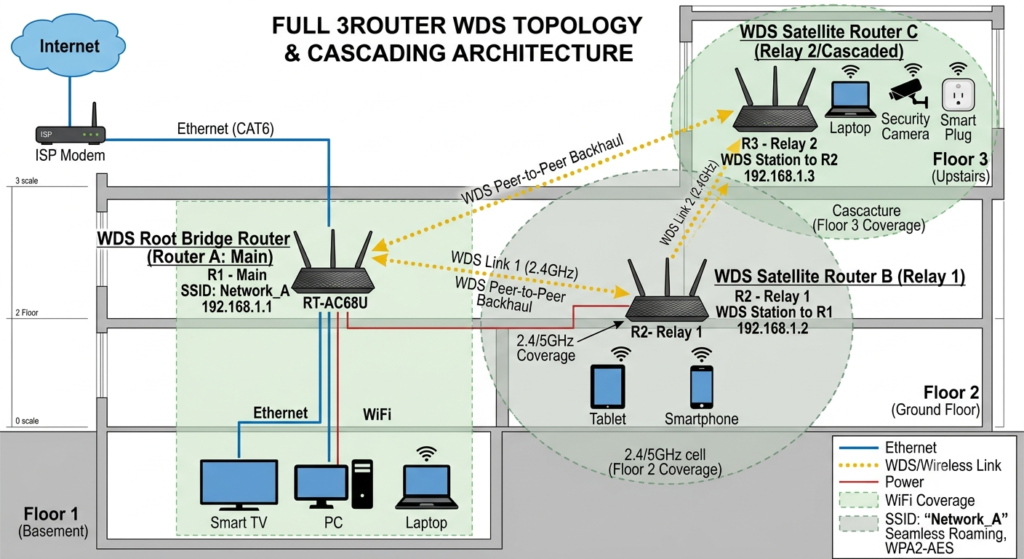
This 4-address frame structure makes WDS a true transparent Layer 2 wireless bridge. Broadcast frames (like ARP requests) and multicast traffic pass seamlessly through the wireless backhaul. Devices connected to secondary and tertiary routers can obtain DHCP leases directly from the primary gateway, share local files, and communicate without Network Address Translation (NAT) barriers.
[Diagram 1 Placeholder: Full 3-Router WDS Topology & Cascading Architecture]
Caption: Conceptual diagram showing the Layer 2 transparent bridge across three TP-Link nodes using 4-address WDS frame formatting.
Architectural Comparison: WDS vs. Alternatives
Selecting the right architecture depends on budget, performance requirements, and physical infrastructure constraints.
| Architectural Metric | WDS Wireless Bridge | Wireless Repeater / Extender | Dedicated Access Point (AP) | Mesh WiFi System |
| Operating Layer | Layer 2 (Data Link) | Layer 3 (MAC Translation) | Layer 2 (Physical Wire) | Layer 2/3 (Dynamic Routing) |
| Dedicated Backhaul | No (Shared Radio) | No (Shared Radio) | Yes (Gigabit Ethernet) | High-end models (Tri-Band) |
| Bandwidth Loss per Hop | ~50% reduction | ~50% reduction | 0% (Wired) | 0% to 50% (Tri vs. Dual) |
| Seamless Roaming | Limited (Client-driven) | Poor (Sticky Clients) | Fast (802.11k/v/r) | Fast (802.11k/v/r) |
| Setup Complexity | Moderate–High | Low | Low (Requires Cabling) | Very Low (App-driven) |
| Hardware Cost | $0 (Repurposed Routers) | Low ($20–$40) | Moderate ($60–$150) | High ($150–$500+) |
Real-World Topology: The 3-Router Cascading Setup
The topology for this deployment uses a 3-router wireless daisy-chain. Traffic flows sequentially from the tail node (Router 3), through an intermediate relay node (Router 2), to the main gateway (Router 1), and out to the ISP.
                    Internet
                       │
                ISP Fibre/GPON
                       │
               ┌─────────────────┐
               │    Router 1     │
               │ Main Gateway    │
               │ DHCP Enabled    │
               │ 192.168.0.1     │
               └─────────────────┘
                       )))
                 Wireless WDS Bridge (2.4 GHz)
                       )))
               ┌─────────────────┐
               │    Router 2     │
               │ WDS Relay Bridge│
               │ DHCP Disabled   │
               │ Static IP       │
               │ 192.168.0.143   │
               └─────────────────┘
                       )))
                 Wireless WDS Bridge (2.4 GHz)
                       )))
               ┌─────────────────┐
               │    Router 3     │
               │ WDS Tail Bridge │
               │ DHCP Disabled   │
               │ Static IP       │
               │ 192.168.0.20    │
               └─────────────────┘
                       │
       ┌───────────────┼────────────────┐
       │               │                │
    Laptop       Raspberry Pi      Mobile Devices
Detailed Packet Journey: Trace of an Outbound Request
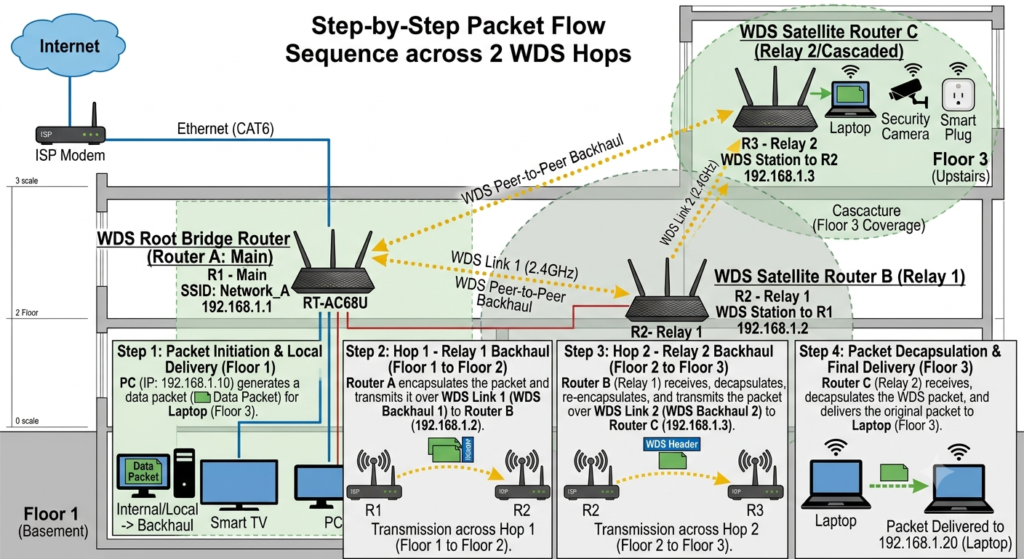
Let’s trace what happens when a Raspberry Pi connected to an Ethernet port on Router 3 requests an IP address via DHCP and then executes a DNS query to 8.8.8.8.
[Diagram 2 Placeholder: Step-by-Step Packet Flow Sequence across 2 WDS Hops]
Caption: Step-by-step encapsulation, transmission, and decapsulation of a Layer 2 frame moving from Router 3 to Router 1.
- DHCP Discovery (Layer 2 Broadcast):
- The Raspberry Pi broadcasts a
DHCPDISCOVERpacket (MAC Source: Pi_MAC,Destination: FF:FF:FF:FF:FF:FF). - Router 3 receives the frame on its LAN switch chip. Because WDS is active and DHCP is disabled locally, Router 3 encapsulates the payload into an 802.11 4-address frame.
- The frame is transmitted over the 2.4 GHz radio link to Router 2.
- The Raspberry Pi broadcasts a
- Relaying Across the Middle Hop:
- Router 2 receives the 4-address frame on its wireless interface.
- Recognizing that the destination MAC (
FF:FF:FF:FF:FF:FF) is a broadcast address, Router 2 forwards the frame across its active WDS client interface to Router 1. - No NAT, routing, or IP modification occurs inside Router 2 or Router 3; the original payload remains intact.
- Gateway Ingestion & IP Assignment:
- Router 1 receives the broadcast frame, strips the 802.11 headers, and processes the
DHCPDISCOVERpacket in its internal DHCP server daemon. - Router 1 allocates an IP address (e.g.,
192.168.0.105), sets the default gateway to192.168.0.1, specifies DNS servers, and sends aDHCPOFFERunicast packet back down the chain. - The packet traverses Router 2 and Router 3, reaching the Raspberry Pi.
- Router 1 receives the broadcast frame, strips the 802.11 headers, and processes the
- Outbound IP Routing (DNS Request to 8.8.8.8):
- The Raspberry Pi sends a UDP packet addressed to
8.8.8.8:53. It wraps this inside an Ethernet frame targeted at Router 1’s MAC address (MAC Destination: Router1_MAC). - The frame travels across the WDS bridge (Router 3 $\rightarrow$ Router 2 $\rightarrow$ Router 1).
- Upon reaching Router 1, the gateway strips the Layer 2 header, processes the IP packet via its NAT routing table, replaces the local source IP (
192.168.0.105) with its public WAN IP, and forwards the packet to the ISP gateway.
- The Raspberry Pi sends a UDP packet addressed to
Node Roles & Architectural Responsibilities
Router 1 (Main Gateway)
- Physical Connection: Connected to the ISP Optical Network Terminal (ONT) or modem via its WAN port.
- Layer 3 Services: Operates as the sole Network Address Translation (NAT) engine, stateful firewall, and primary DHCP server for the subnet (
192.168.0.0/24). - WDS Role: Acts as the Root WDS Access Point node. It broadcasts the root SSID and anchors the wireless network topology.
Router 2 (Relay Node)
- Physical Connection: Zero network cables attached to its WAN or LAN ports (except during initial setup). Powered solely via wall outlet.
- Layer 3 Services: Management IP statically assigned to
192.168.0.143. DHCP server disabled. NAT disabled. - WDS Role: Operates as a WDS Relay Bridge. It maintains an active WDS client connection to Router 1 while simultaneously serving as a WDS host/AP to Router 3.
Router 3 (Tail Node)
- Physical Connection: Placed in the dead zone. Local clients (Laptops, Smart TVs, Raspberry Pi) connect to its physical LAN ports or local wireless access point.
- Layer 3 Services: Management IP statically assigned to
192.168.0.20. DHCP server disabled. NAT disabled. - WDS Role: Operates as a WDS Client Bridge pointing back to Router 2.
Hardware & Prerequisites
To build this setup, prepare the following hardware:
- Primary Gateway (Router 1): TP-Link Archer series (e.g., Archer C6, A7, or C50) or standard N-series router (e.g., TL-WR841N).
- Secondary Relay Node (Router 2): Any WDS-capable TP-Link router.
- Tertiary Tail Node (Router 3): Any WDS-capable TP-Link router.
- Troubleshooting Gear: One PC or Laptop with an RJ45 Ethernet port, one Cat5e/Cat6 patch cable, and a mobile phone running a WiFi analyzer app (e.g., WiFi Analyzer for Android or Wi-Fi Explorer for macOS).
Important Pre-Check: Verify that all three TP-Link routers support WDS Bridging within their firmware. Navigate to Advanced > Wireless > WDS Bridging (or Wireless Settings > Enable WDS Bridging in legacy green/blue interfaces).
Step-by-Step Configuration Guide
To avoid network loops, IP address conflicts, and dropped administrative access, follow this configuration order carefully.
          [ Configuration Flow Checklist ]

   Step 1: Configure Router 1 (Main Gateway)
   ├── Set Static 2.4 GHz Wireless Channel (Channel 1)
   ├── Lock Channel Width to 20 MHz
   └── Define DHCP Subnet (192.168.0.1, Pool: .100–.199)
                   │
                   ▼
   Step 2: Configure Router 2 (Middle Relay Node)
   ├── Change LAN IP to 192.168.0.143
   ├── Disable DHCP Server
   └── Enable WDS: Scan & Connect to Router 1
                   │
                   ▼
   Step 3: Configure Router 3 (Tail Node)
   ├── Change LAN IP to 192.168.0.20
   ├── Disable DHCP Server
   └── Enable WDS: Scan & Connect to Router 2
Step 1: Router 1 (Main Gateway) Configuration
- Connect your management laptop directly to a LAN port on Router 1 using an Ethernet cable.
- Log into the web management interface at
192.168.0.1(ortplinkwifi.net). - Navigate to Network > LAN and set the IP Address to
192.168.0.1with a Subnet Mask of255.255.255.0. - Navigate to DHCP > DHCP Settings:
- Set DHCP Server: Enable.
- Set Start IP Address:
192.168.0.100. - Set End IP Address:
192.168.0.199. - Set Default Gateway:
192.168.0.1. - Set Primary DNS:
8.8.8.8(or your preferred DNS server). - Click Save.
+-------------------------------------------------------------+
|                      Router 1: DHCP Settings                |
+-------------------------------------------------------------+
|  DHCP Server:       [X] Enable     [ ] Disable              |
|  Start IP Address:  192.168.0.100                           |
|  End IP Address:    192.168.0.199                           |
|  Default Gateway:   192.168.0.1                             |
|  Primary DNS:       8.8.8.8                                 |
+-------------------------------------------------------------+
- Navigate to Wireless 2.4 GHz > Wireless Settings:
- Wireless Network Name (SSID):
HomeNetwork_Main - Mode:
802.11b/g/n mixed - Channel: Set a fixed channel (e.g.,
Channel 1). Do not leave this on Auto. - Channel Width: Select
20 MHz. Do not leave this on Auto or 40 MHz. - Click Save.
- Wireless Network Name (SSID):
+-------------------------------------------------------------+
|                 Router 1: Wireless 2.4GHz                   |
+-------------------------------------------------------------+
|  SSID:              HomeNetwork_Main                        |
|  Mode:              802.11b/g/n mixed                       |
|  Channel:           1  <-- FIXED (Crucial for WDS)          |
|  Channel Width:     20 MHz <-- FIXED                        |
+-------------------------------------------------------------+
- Navigate to Wireless 2.4 GHz > Wireless Security:
- Select WPA/WPA2 – Personal (Recommended).
- Version:
WPA2-PSK. - Encryption:
AES. - Password: Define a strong wireless password (e.g.,
SecurePass123!). - Click Save.
Crucial Rule: Dynamic channel changes broken by “Auto Channel” on Router 1 will cause the entire WDS cascading chain to disconnect. WDS requires all participating nodes to operate on the exact same radio channel.
Step 2: Router 2 (Middle Relay) Configuration
- Disconnect your laptop from Router 1. Power on Router 2 independently and plug your laptop into its LAN port 1.
- Log into Router 2’s interface (default is usually
192.168.0.1or192.168.1.1). - Navigate to Network > LAN:
- Change the IP Address to
192.168.0.143. - Subnet Mask:
255.255.255.0. - Click Save. The router will reboot.
- Change the IP Address to
+-------------------------------------------------------------+
|                      Router 2: LAN Settings                 |
+-------------------------------------------------------------+
|  MAC Address:       AA:BB:CC:DD:EE:02                       |
|  IP Address:        192.168.0.143  <-- Static Management    |
|  Subnet Mask:       255.255.255.0                           |
+-------------------------------------------------------------+
- Re-open your web browser and access the new IP address:
[http://192.168.0.143](http://192.168.0.143). - Navigate to DHCP > DHCP Settings:
- Set DHCP Server: Disable.
- Click Save. Do not reboot yet.
+-------------------------------------------------------------+
|                      Router 2: DHCP Settings                |
+-------------------------------------------------------------+
|  DHCP Server:       [ ] Enable     [X] Disable <-- MUST OFF |
+-------------------------------------------------------------+
- Navigate to Wireless 2.4 GHz > Wireless Settings:
- Set Wireless Network Name (SSID):
HomeNetwork_Relay(or matchHomeNetwork_Mainif you prefer unified naming). - Set Channel: Select
1(Must match Router 1). - Set Channel Width:
20 MHz. - Check the box for Enable WDS Bridging.
- Set Wireless Network Name (SSID):
- Click the Survey / Scan button. A list of nearby wireless networks will appear.
- Locate
HomeNetwork_Main(Router 1). - Click Connect next to Router 1’s entry. This populates the SSID to be bridged and the BSSID (MAC Address) automatically.
- Locate
- Complete the WDS Security fields:
- Key Type:
WPA-PSK/WPA2-PSK. - Encryption:
AES. - Password: Enter Router 1’s WiFi password (
SecurePass123!). - Click Save.
- Key Type:
+-------------------------------------------------------------+
|                 Router 2: WDS Configuration                 |
+-------------------------------------------------------------+
|  Enable WDS Bridging: [X] Checked                           |
|  SSID (to be bridged): HomeNetwork_Main                     |
|  BSSID (to be bridged): AA:BB:CC:DD:EE:01 (Router 1 MAC)    |
|  Key Type:             WPA2-PSK                             |
|  Password:             SecurePass123!                       |
+-------------------------------------------------------------+
- Navigate to System Tools > Reboot and restart the router.
- Once rebooted, log back into
192.168.0.143and check Status > Wireless. The WDS Status should display Run (or Init… followed shortly by Run).
Step 3: Router 3 (Tail Node) Configuration
- Disconnect your laptop from Router 2. Power on Router 3 in its intended room and connect your laptop via LAN cable.
- Access Router 3’s web management interface.
- Navigate to Network > LAN:
- Change the IP Address to
192.168.0.20. - Subnet Mask:
255.255.255.0. - Click Save and wait for the reboot.
- Change the IP Address to
+-------------------------------------------------------------+
|                      Router 3: LAN Settings                 |
+-------------------------------------------------------------+
|  MAC Address:       AA:BB:CC:DD:EE:03                       |
|  IP Address:        192.168.0.20   <-- Static Management    |
|  Subnet Mask:       255.255.255.0                           |
+-------------------------------------------------------------+
- Access
[http://192.168.0.20](http://192.168.0.20)in your browser. - Navigate to DHCP > DHCP Settings:
- Set DHCP Server: Disable.
- Click Save.
+-------------------------------------------------------------+
|                      Router 3: DHCP Settings                |
+-------------------------------------------------------------+
|  DHCP Server:       [ ] Enable     [X] Disable <-- MUST OFF |
+-------------------------------------------------------------+
- Navigate to Wireless 2.4 GHz > Wireless Settings:
- Set Wireless Network Name (SSID):
HomeNetwork_Tail - Set Channel: Select
1(Must match Routers 1 and 2). - Set Channel Width:
20 MHz. - Check Enable WDS Bridging.
- Set Wireless Network Name (SSID):
- Click Survey / Scan:
- Locate
HomeNetwork_Relay(Router 2). - Click Connect next to Router 2’s entry.
- Locate
- Complete the WDS Security parameters:
- Key Type:
WPA-PSK/WPA2-PSK. - Encryption:
AES. - Password: Enter Router 2’s WiFi password (
SecurePass123!). - Click Save.
- Key Type:
+-------------------------------------------------------------+
|                 Router 3: WDS Configuration                 |
+-------------------------------------------------------------+
|  Enable WDS Bridging: [X] Checked                           |
|  SSID (to be bridged): HomeNetwork_Relay                    |
|  BSSID (to be bridged): AA:BB:CC:DD:EE:02 (Router 2 MAC)    |
|  Key Type:             WPA2-PSK                             |
|  Password:             SecurePass123!                       |
+-------------------------------------------------------------+
- Navigate to System Tools > Reboot and restart Router 3.
- Verify WDS connectivity by reviewing Status > Wireless > WDS Status on Router 3. It should read Run.
Wireless Spectrum Optimization & RF Engineering
Wireless distribution links are vulnerable to environmental radio frequency (RF) noise. Proper spectrum tuning is essential for a functional WDS bridge setup.
[Diagram 3 Placeholder: 2.4 GHz Non-Overlapping Channels (1, 6, 11 vs 2, 3, 4, 5)]
Caption: Spectral mask diagram illustrating non-overlapping channels (1, 6, 11) compared to overlapping adjacent channels.
2.4 GHz Channel Selection: The Non-Overlapping Rule
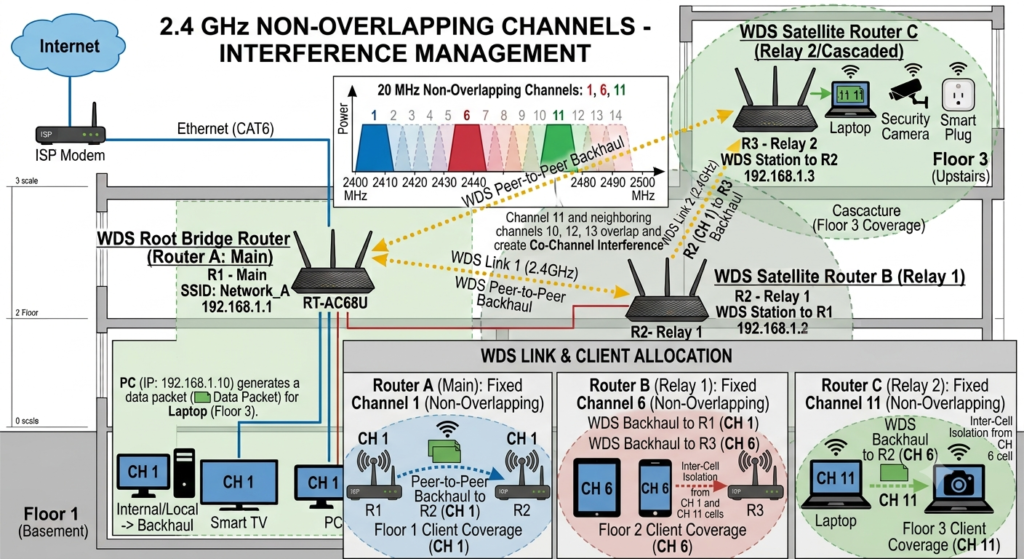
The 2.4 GHz ISM band spans from 2.412 GHz to 2.472 GHz (in most regions), divided into 11 to 13 channels spaced 5 MHz apart. However, an 802.11n signal requires 20 MHz of channel bandwidth.
Because 20 MHz is wider than the 5 MHz channel spacing, every channel overlaps with its neighbors. The only three non-overlapping channels in the 2.4 GHz spectrum are 1, 6, and 11.
Channel 1 : |--- 20 MHz ---|
Channel 2 :   |--- 20 MHz ---|  <-- Overlaps with Ch 1
Channel 3 :     |--- 20 MHz ---|  <-- Overlaps with Ch 1 & 6
Channel 6 :            |--- 20 MHz ---|
Channel 11:                   |--- 20 MHz ---|
If you select an adjacent channel (such as Channel 2 or Channel 3), your equipment experiences Adjacent-Channel Interference (ACI). Unlike Co-Channel Interference (CCI)—where devices take turns transmitting using CSMA/CA—ACI creates uncoordinated RF noise that distorts signals at the physical layer, leading to high packet loss and link drops.
Channel Width: 20 MHz vs. 40 MHz
While 802.11n supports a 40 MHz channel width (bonding two 20 MHz channels together to increase raw link speeds), 40 MHz should be avoided in a 2.4 GHz WDS setup:
- Spectrum Usage: A 40 MHz channel consumes over 80% of the entire usable 2.4 GHz spectrum, guaranteeing interference from neighboring WiFi networks, Bluetooth devices, and baby monitors.
- Signal-to-Noise Ratio (SNR): Widening the channel bandwidth allows more ambient thermal noise into the receiver radio, lowering the overall Signal-to-Noise Ratio (SNR) by roughly 3 dB. This reduces signal reach through walls and degrades backhaul link reliability.
- WDS Stability: Multi-hop WDS cascades require consistent signal quality. Locking all routers to 20 MHz provides cleaner spectrum usage and more reliable performance over distance.
Security Protocols & Hardware Acceleration
Always use WPA2-PSK with AES encryption. Legacy security modes introduce significant performance limitations:
- WEP / WPA-TKIP Limitations: The IEEE 802.11n specification explicitly states that if legacy WEP or WPA-TKIP encryption is used, the system must disable high-throughput data rates, dropping maximum connection speeds to legacy 802.11g levels (54 Mbps raw link speed, yielding under 20 Mbps real-world throughput).
- Hardware Acceleration: Modern TP-Link SoCs feature hardware acceleration engines designed specifically for WPA2-AES encryption. Selecting TKIP forces encryption handling onto the main CPU, causing performance bottlenecks and latency spikes across the WDS bridge.
Physical Placement, Environmental Factors, & DIY Tweaks
Proper physical placement of your routers is just as important as correct software configuration.
[Diagram 4 Placeholder: Toroidal Antenna Radiation Pattern & Vertical vs. Multi-Story Placement]
Caption: Donut-shaped (toroidal) RF radiation pattern showing optimal antenna angles for single-story vs multi-story setups.
Optimal Router Placement Guidelines
- The 50% Distance Rule: Do not place Router 2 directly inside the dead zone. Position it roughly halfway between Router 1 and the dead zone. Router 2 needs a strong RSSI signal ($\ge -65\text{ dBm}$) from Router 1 to maintain a high-speed backhaul link.
- Elevation: Mount routers at least 1.5 to 2 meters (5 to 6 feet) off the floor. Lower placements cause RF signals to bounce off flooring and furniture, increasing multipath distortion.
- Physical Obstruction Awareness:
- Concrete & Brick: A standard 6-inch reinforced concrete wall attenuates a 2.4 GHz signal by 10 to 15 dB, cutting signal strength by more than half.
- Metal Surfaces & Mirrors: Metal reflects RF signals entirely. Avoid placing routers behind large TVs, metal appliances, or mirrors with metallic backing.
- Microwave Ovens: Microwaves operate around 2.45 GHz. A operating microwave can completely disrupt a 2.4 GHz WDS link running on Channel 6.
Antenna Orientation Physics
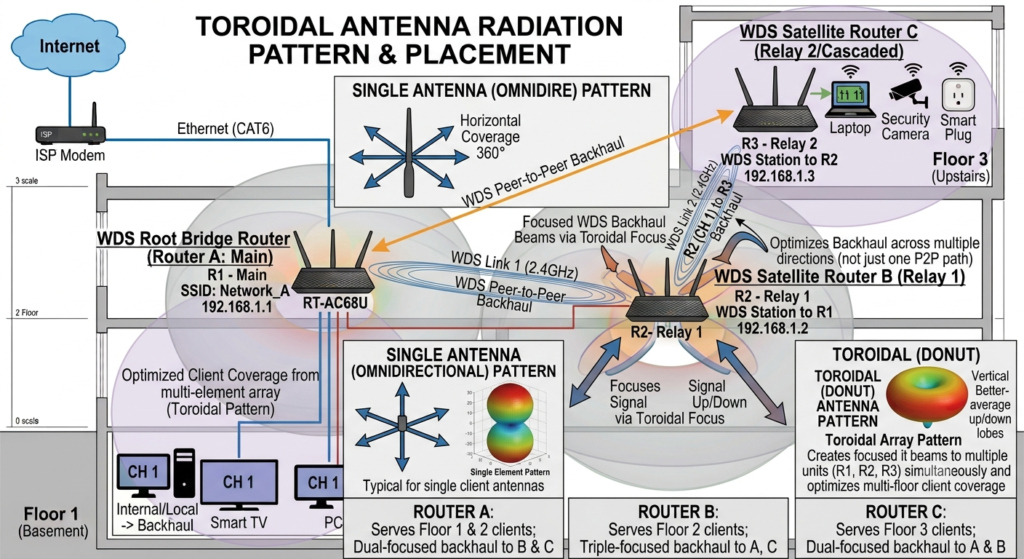
Standard 5 dBi dipole antennas on TP-Link routers emit an omnidirectional toroidal (donut-shaped) radiation pattern:
             Side View (Dipole Antenna)

                   /.---\.
                  /       \
                 |  ( (  ) )  |  <-- Maximum Signal Outward
                  \       /
                   '\---/'
                     ||
                     ||  <-- Antenna Rod
                     ||
- Single-Story Deployment: Keep all antennas pointed straight up vertically (90 degrees). This propagates RF coverage horizontally across the floor.
- Multi-Story Cascading Setup (e.g., Router 1 on Floor 1, Router 2 on Floor 2): Angle one antenna on Router 1 horizontally (45 to 90 degrees flat) and align an antenna on Router 2 to match. This points the main radiation donut vertically up through the ceiling/floor.
DIY Signal Boosters: Parabolic Reflector Physics
If your link between Router 2 and Router 3 shows poor signal strength, a simple parabolic aluminum foil reflector can improve performance.
               Parabolic Reflection

      Incoming Signal         Reflector Shield
           =======>               | \
           =======>    Antenna    |  \ (Foil)
           =======> ---->(o)----->|  /
                                  | /
- How it Works: Placing a curved parabolic aluminum surface behind an omnidirectional dipole antenna reflects backward-propagating RF energy forward.
- Gain Realized: A properly constructed parabolic reflector increases directional signal strength by 3 to 5 dBi in the focused direction, while suppressing noise originating from behind the reflector.
Real-World Performance & Throughput Penalties
While WDS solves coverage problems without running cables, it comes with a structural performance trade-off: the half-duplex single-radio penalty.
The 50% Half-Duplex Penalty Explained
Standard routers contain a single 2.4 GHz radio transceiver, which operates in half-duplex mode (it cannot transmit and receive simultaneously on the same channel).
When Router 2 relays a packet from Router 3 to Router 1, its single radio must:
- Receive the frame from Router 3 on Channel 1.
- Buffer the frame in internal memory.
- Switch modes and re-transmit the frame to Router 1 on Channel 1.
Time-Division Multiplexing on a Single Radio:

Time Slot 1: [ Router 3 Transmits ] ----------> [ Router 2 Receives ]
Time Slot 2:                                     [ Router 2 Transmits ] ----------> [ Router 1 Receives ]
Because every packet must be transmitted twice over the same frequency space, available throughput drops by ~50% per wireless hop.
Expected Performance Matrix
Here is real-world test data from a 3-router WDS setup built on a 100 Mbps ISP fiber line:
| Subnet Node | WDS Hops | Theoretical Max Rate | Real-World Throughput | Latency (to Gateway) | Jitter |
| Router 1 | 0 (Direct) | 300 Mbps | 94.2 Mbps | 1–2 ms | 0.4 ms |
| Router 2 | 1 Hop | 150 Mbps | 42.8 Mbps | 6–12 ms | 2.1 ms |
| Router 3 | 2 Hops | 75 Mbps | 18.5 Mbps | 18–35 ms | 8.6 ms |
While an 18.5 Mbps connection on Router 3 is more than sufficient for 4K video streaming, web browsing, and smart home control, it is not ideal for low-latency competitive online gaming or high-volume NAS file transfers.
Case Study: Troubleshooting & Diagnostics
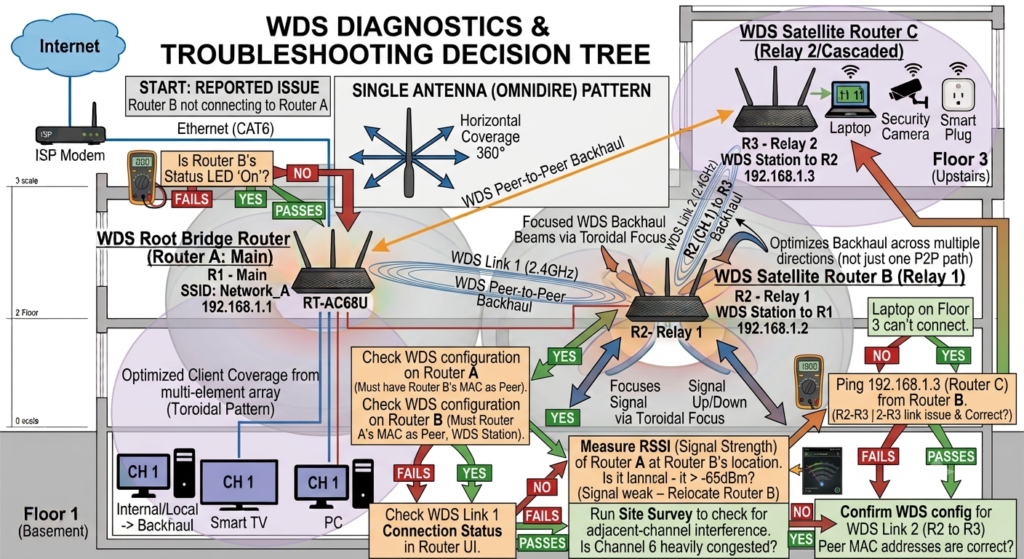
During the deployment of this 3-router WDS setup, we encountered several common real-world networking issues.
[Diagram 5 Placeholder: WDS Diagnostics & Troubleshooting Decision Tree]
Caption: Decision flowchart for diagnosing WDS status issues, IP lease failures, and management access glitches.
Real-World Scenarios Encountered
Issue 1: Inaccessible Router Management UI
- Symptom: Clients connected to Router 3 could browse the internet, but navigating to Router 2’s management interface (
192.168.0.143) timed out. - Root Cause: Router 2 processed transit traffic at Layer 2 across its switch chip without passing frames up to its own management CPU interface, combined with a missing default gateway route in Router 2’s local stack.
- Solution: Re-assign Router 2’s static IP address within the gateway subnet and manually specify
192.168.0.1as its Default Gateway in the LAN settings.
Issue 2: Windows “Unidentified Network / No Internet”
- Symptom: Devices connecting to Router 3 failed to receive an IP address and defaulted to an APIPA address (
169.254.x.x). - Root Cause: A secondary DHCP server was left active on Router 2 during initial setup, creating a race condition that issued incomplete IP lease details.
- Solution: Disable the DHCP server on all secondary nodes (Router 2 and Router 3), and execute
ipconfig /renewon client PCs to acquire valid leases from Router 1.
Issue 3: Hidden Interference on Channel 2
- Symptom: A WiFi scanning app showed Channel 2 was completely empty, so the setup was initially built there. However, link throughput dropped to under 2 Mbps.
- Root Cause: Channel 2 overlaps directly with Channel 1. Uncoordinated sideband traffic from neighboring Channel 1 networks caused severe Adjacent-Channel Interference (ACI).
- Solution: Reconfigure all three routers to operate on standard Channel 1.
Command-Line Diagnostics & Field Validation
When troubleshooting a multi-hop WDS network, use these CLI commands to diagnose issues step-by-step:
1. Confirm Host Network Configuration (ipconfig /all)
Verify that the local device has acquired a valid IP address from Router 1’s DHCP pool:
DOS
C:\Users\Admin> ipconfig /all

Ethernet adapter Local Area Connection:
   Connection-specific DNS Suffix  . : lan
   IPv4 Address. . . . . . . . . . . : 192.168.0.105(Preferred)
   Subnet Mask . . . . . . . . . . . : 255.255.255.0
   Default Gateway . . . . . . . . . : 192.168.0.1
   DHCP Server . . . . . . . . . . . : 192.168.0.1
   DNS Servers . . . . . . . . . . . : 8.8.8.8
2. Verify MAC-to-IP Address Resolution (arp -a)
Use the Address Resolution Protocol (ARP) table to verify that all three router nodes are visible at Layer 2:
DOS
C:\Users\Admin> arp -a

Interface: 192.168.0.105 --- 0xb
  Internet Address      Physical Address      Type
  192.168.0.1           aa-bb-cc-dd-ee-01     dynamic   <-- Router 1 (Gateway)
  192.168.0.143         aa-bb-cc-dd-ee-02     dynamic   <-- Router 2 (Relay Node)
  192.168.0.20          aa-bb-cc-dd-ee-03     dynamic   <-- Router 3 (Tail Node)
3. Test Multi-Hop Latency and Link Stability (ping)
Run a continuous ping to the main gateway to monitor stability across the WDS backhaul:
DOS
C:\Users\Admin> ping -t 192.168.0.1

Pinging 192.168.0.1 with 32 bytes of data:
Reply from 192.168.0.1: bytes=32 time=18ms TTL=64
Reply from 192.168.0.1: bytes=32 time=22ms TTL=64
Reply from 192.168.0.1: bytes=32 time=19ms TTL=64
Reply from 192.168.0.1: bytes=32 time=41ms TTL=64

Ping statistics for 192.168.0.1:
    Packets: Sent = 4, Received = 4, Lost = 0 (0% loss),
Approximate round trip times in milli-seconds:
    Minimum = 18ms, Maximum = 41ms, Average = 25ms
4. Trace the Network Path (tracert)
Verify that traffic routes cleanly through the gateway without extra Layer 3 hops:
DOS
C:\Users\Admin> tracert 8.8.8.8

Tracing route to dns.google [8.8.8.8]
over a maximum of 30 hops:

  1    21 ms    19 ms    24 ms  192.168.0.1  <-- Transits Layer 2 WDS Bridge to Gateway
  2    11 ms    10 ms    12 ms  10.150.0.1   <-- ISP Next Hop
  3    14 ms    13 ms    15 ms  8.8.8.8      <-- Destination Reached
Troubleshooting Matrix: Quick Reference
| Symptom | Root Cause | Exact Fix |
| WDS Status stuck on “Init…” | Wireless password, encryption type, or channel mismatch between nodes. | Ensure all nodes share the exact same Channel (e.g., Ch 1) and security credentials. |
| “IP Address Conflict” error | Router 2 or 3 has an IP that collides with another device or Router 1’s DHCP pool. | Assign static IPs outside the DHCP pool range (e.g., .143 and .20 when the pool starts at .100). |
| Devices drop offline periodically | Primary router is on “Auto Channel” and shifted frequencies. | Change Router 1’s 2.4 GHz channel from Auto to a fixed value (1, 6, or 11). |
| Frequent disconnects on multi-hop bridge | Channel width set to 40 MHz, causing high RF noise and interference. | Set Channel Width to 20 MHz on all three routers. |
| Clients connected to Router 3 have No Internet | DHCP Server was left enabled on Router 2 or Router 3. | Disable the DHCP server on Routers 2 and 3 so Router 1 manages all IP leases. |
Frequently Asked Questions (FAQ)
1. Is WDS compatible across different router brands (e.g., TP-Link to Netgear)?
While WDS is an IEEE standard, its implementation varies across manufacturers. Mixing brands often leads to bridge instability or authentication failures. For a multi-hop cascading setup, using routers from the same vendor (such as all TP-Link devices) is strongly recommended.
2. Should I use the same SSID on all three routers or different ones?
Using different SSIDs (e.g., Home_Main, Home_Relay, Home_Tail) gives you explicit control over which router your device connects to. Using the same SSID allows basic roaming, but without 802.11k/v/r support, client devices may cling to a weaker signal as you move around.
3. Will WDS bridging work on the 5 GHz band?
Yes, if all your routers support 5 GHz WDS bridging. The 5 GHz band offers higher throughput and less RF interference, but its signals do not penetrate solid walls as effectively as 2.4 GHz signals.
4. Can I connect wired Ethernet devices to Routers 2 and 3?
Yes. The LAN ports on Routers 2 and 3 function as an active network switch. Connected devices (such as desktop PCs, game consoles, or NAS drives) will bridge transparently into the main 192.168.0.0/24 network.
5. Why must I disable DHCP on Routers 2 and 3?
Running multiple DHCP servers on the same subnet causes IP address conflicts and erratic routing, as devices may receive incorrect gateway settings from secondary routers. Disabling DHCP on secondary nodes ensures Router 1 handles all IP management centrally.
6. Does WDS affect gaming ping times?
Yes. Each wireless WDS hop adds 5 to 20 ms of processing latency and increases potential jitter. For low-latency competitive gaming, a direct wired Ethernet connection or powerline adapter is preferable.
7. What happens if Router 2 loses power?
Because this setup uses a linear cascade (Router 1 $\rightarrow$ Router 2 $\rightarrow$ Router 3), Router 2 acts as the relay link. If Router 2 goes offline, Router 3 loses its bridge connection to the gateway.
8. Why do my network speeds drop by half at each router?
Routers in this setup use a single half-duplex 2.4 GHz radio. Because the radio cannot send and receive data at the same time on the same channel, it must re-transmit packets sequentially, halving the available throughput at each hop.
9. Can I connect Router 3 directly to Router 1 instead of cascading through Router 2?
Yes, if Router 3 is close enough to receive a strong signal from Router 1. This creates a Star Topology, which is generally better for performance because both routers link directly to the gateway rather than through an intermediate hop.
10. Do I need to connect cables to the WAN/Internet ports on Routers 2 and 3?
No. Leave the WAN ports on Routers 2 and 3 completely disconnected. All management and bridged traffic passes through the LAN switch chip and wireless interfaces.
11. Can I use a WDS setup alongside a Guest Network?
Guest networks often use isolated VLANs that do not pass through standard 4-address WDS frames properly. It is best to use main SSIDs for WDS bridging configurations.
12. How many total routers can I link using a WDS cascade?
While there is no hard software limit, performance degrades significantly beyond 3 nodes due to the cumulative half-duplex speed reduction. Beyond 3 nodes, a dedicated Mesh system or wired backhaul is recommended.
13. Why did I lose web UI access to my router during setup?
This usually happens when you change the router’s LAN IP address to match the primary network subnet, but your computer has not yet updated its own IP address. Run ipconfig /renew in Command Prompt to refresh your network settings.
14. What is the difference between WDS and Mesh WiFi?
WDS uses static, single-radio wireless bridges that must be configured manually on fixed channels. Mesh systems use dynamic routing protocols, modern fast roaming standards (802.11k/v/r), and often include dedicated backhaul radios to preserve speed across nodes.
15. How do I reset a router if I get locked out during configuration?
Press and hold the physical Reset button on the back of the TP-Link router for 8 to 10 seconds until all system LEDs flash simultaneously. This restores factory default settings so you can restart the configuration process.
Conclusion
Building a 3-router cascading WDS network is an effective, budget-friendly way to eliminate wireless dead zones using existing equipment. While WDS introduces performance trade-offs due to single-radio half-duplex operation, proper channel selection, static IP planning, and careful physical placement result in a reliable home network.
About The Author
